Block checkout
How the plugin integrates with WooCommerce's modern block-based Cart and Checkout.
If your checkout page uses WooCommerce’s newer block-based Checkout (the one you insert via the block editor with the Checkout block), the plugin works there too. No toggle to flip, the plugin works out which type of checkout you have and loads the right integration.
What your customer sees
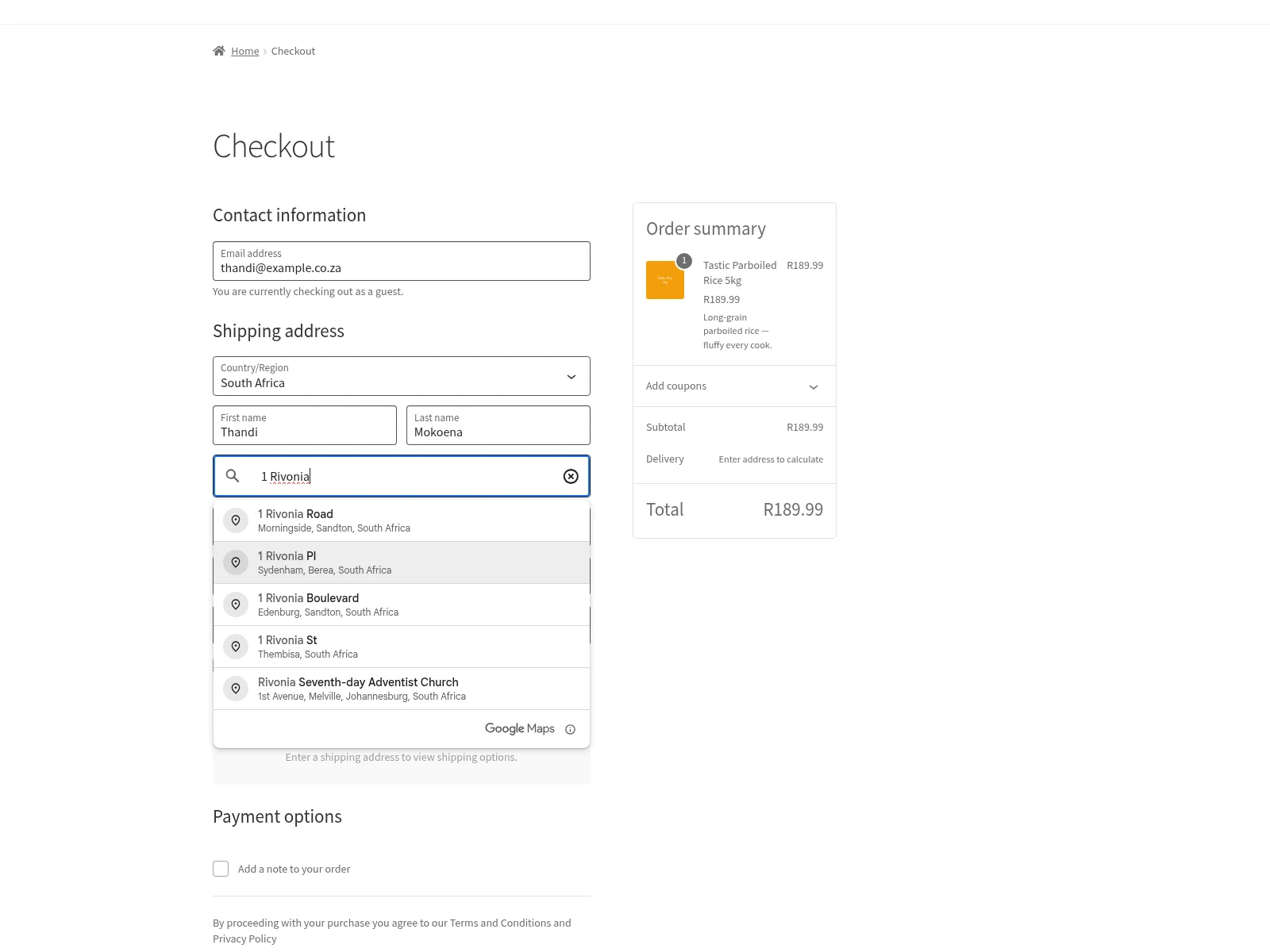
When a customer starts typing in the address field, the plugin shows a dropdown of SA suggestions. Selecting one fills in the street, suburb, city, province, and postcode, exactly like the classic checkout experience.
Suburb is required, worth knowing
The block checkout works differently under the hood from the classic one. Where the classic checkout lets WooCommerce control required fields through a server-side filter, the block checkout builds its form in the browser using JavaScript and ignores that filter.
The plugin handles this by enforcing the Suburb-required rule in the browser instead. When a customer tries to proceed to pay with an empty Suburb, the block checkout shows an inline error under the field and blocks the Place Order button, same user experience as the classic checkout, different plumbing.
There’s one edge case worth knowing about: if a customer disables JavaScript in their browser, the block checkout won’t run this validation. Classic checkout is unaffected. Disabled JavaScript is extremely rare, less than 1% of all shoppers, and in practice the block checkout itself barely functions without JavaScript anyway.
How to tell which checkout you have
Open the page where your checkout lives (usually /checkout/) in the WordPress editor. If you see a block called Checkout with coloured sidebar controls, you’re on the block checkout. If you see a shortcode [woocommerce_checkout] or a classic-editor content block, you’re on the classic checkout.
You can also check on the frontend, the block checkout has a different layout (two columns, summary on the right) and different button styling than the classic one.
Switching between them
You don’t need to pick one. If a customer visits one of your pages that has the classic checkout and another that has the block checkout, the plugin handles both correctly.
That said, we recommend you only have one active checkout page. Otherwise you risk orders that behave inconsistently and SEO spreading across duplicate pages.
What happens if your Google key isn’t set up
Same as classic checkout, no key, no dropdown, but the checkout still works. Customers can type their address manually. Once the key is in and working, autocomplete comes back.